
Approach · Climbing gym software
Shared Memberships
One membership for a family or group, where every seat has its own price, rules and assigned person.
Problem
When one person bought memberships for a family, the system didn’t clearly connect each membership, or its agreement, to the person actually using it.
What I did
Designed the full lifecycle: customer classifications, the pricing chart builder, seat selection at checkout and seat management after purchase.
Result
A single membership per group where every seat has a classification, a price and an owner, and staff can change seats without rebuilding the plan.
Context
Families and groups often climb together, and gyms want to sell them one plan with different prices for adults, kids and seniors. The person who pays is often not the only person who uses the membership, and sometimes not a user at all.
That gap between who pays and who climbs touches everything: pricing, check-ins, billing and the legal agreements each member has to sign.
The problem
- Unclear ownership. A purchaser could buy for several people, but each membership wasn’t explicitly linked to the person assigned to it.
- Agreements without a clear signer. Staff and customers couldn’t tell which family member still had to sign, whether at the front desk, at the kiosk or by email.
- Checkout doubts. Purchasers weren’t sure discounts were applied correctly on multi-person purchases.
Constraints
- Same logic everywhere. Selecting, assigning and signing had to work the same in the admin app, front desk sales and the customer portal.
- Minors can’t sign. An adult purchaser or guardian has to sign agreements on behalf of kids.
- Existing components. Screens had to use the current component library (based on Material UI), with standard controls instead of new custom ones.
- One person per document. The backend expected each agreement to be mapped to a single, named customer.
Key decisions
1. Seats as the building block
Instead of pricing a group as a whole, every membership is made of seats. Each seat has a classification (for example Adult, Kid or Senior, defined by age), a position in the sequence, a price, and whether it’s required.
This lets a gym say “the first adult pays $150 and the second $130” or “kids between 10 and 17 pay $100”, without creating a new membership type for every family size.
Discarded Fixed bundles like “family of four” at a single price. They’re simpler to sell, but break as soon as a family doesn’t match the bundle exactly.
2. Who pays and who uses it are separate
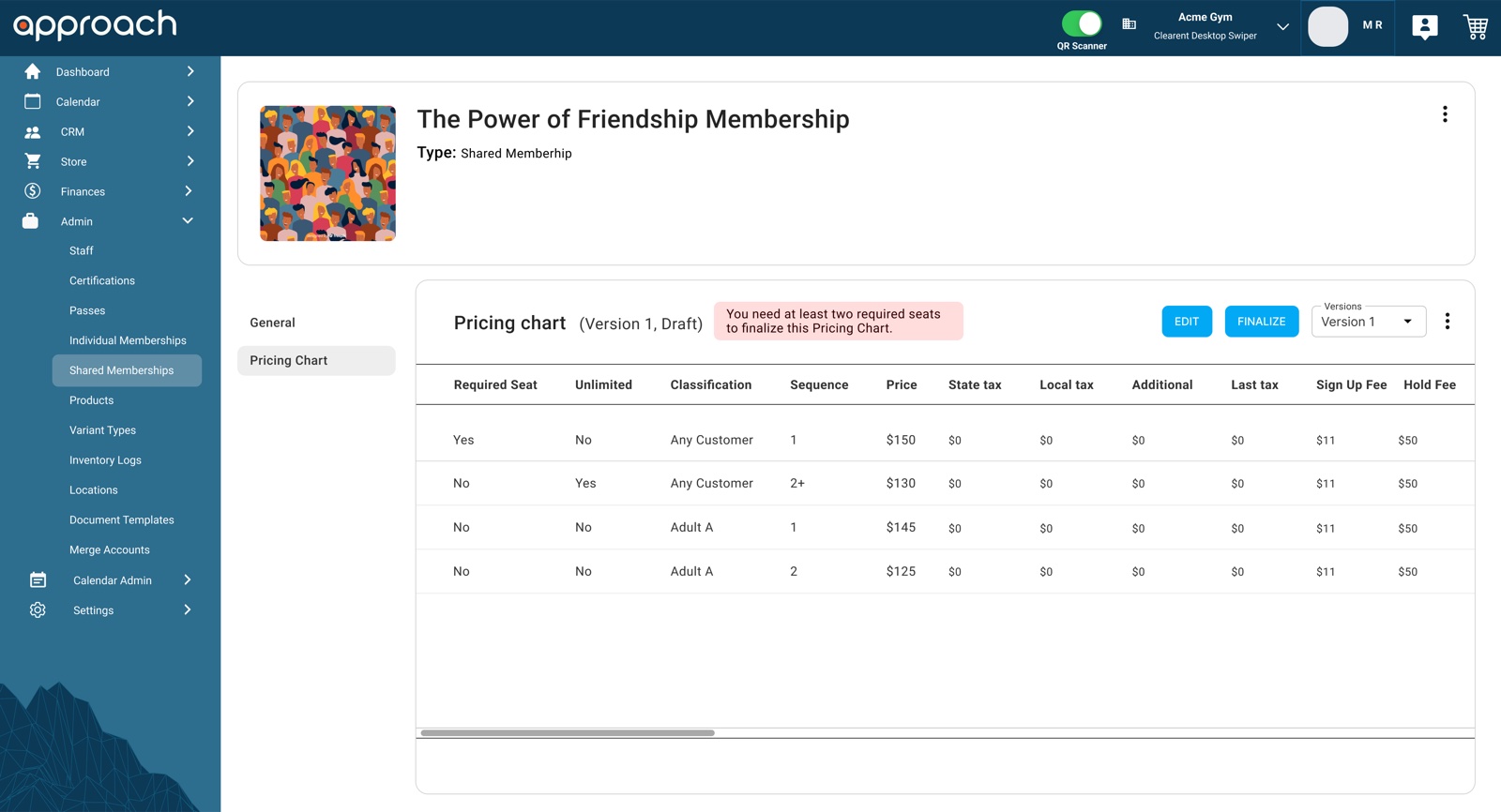
Every seat has a purchaser and an assigned customer. A seat can be bought first and assigned later, either to someone in the purchaser’s household or to any other customer, and agreements follow the assigned person, not the purchaser.
Discarded Letting purchasers select several agreements at once and sign them in one session. It caused backend validation errors and confused people at the kiosk when more than one dependent was involved.
3. Pricing charts as versioned drafts
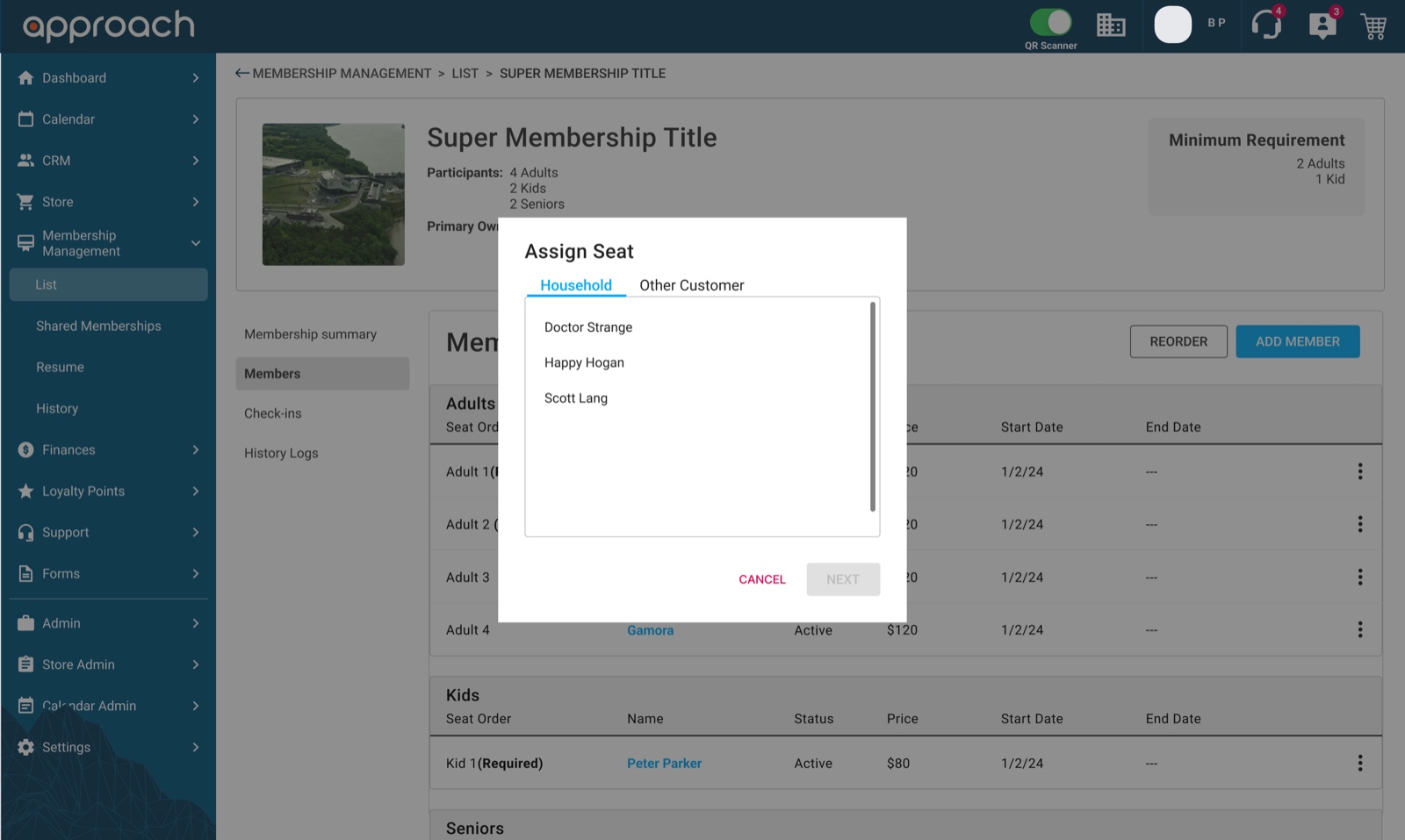
Pricing changes affect people who already pay for a membership, so charts move through draft, finalize and publish, and keep earlier versions. Validation messages explain what’s missing in plain words, like the minimum number of required seats.
Discarded Editing the live price list directly. Faster for staff, but a single mistake would reach every member on that plan.
The solution
The flow covers the full life of a shared membership, from setup to day-to-day changes:
- Setup: admins define customer classifications by age, then build pricing charts with required seats, sequence pricing, taxes and fees.
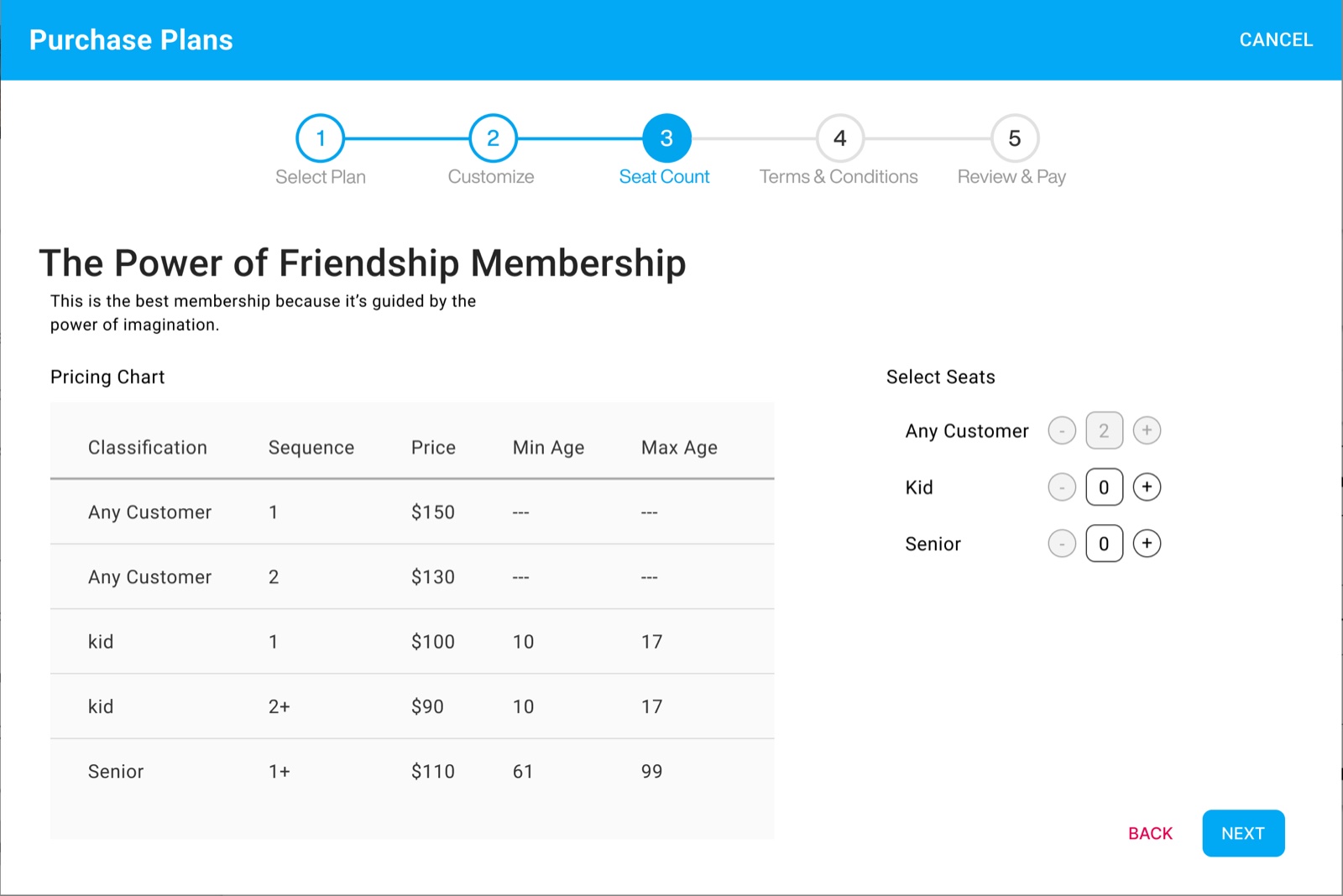
- Selling: in the purchase flow, a seat count step shows the pricing chart next to simple counters for each classification. Required seats are already included.
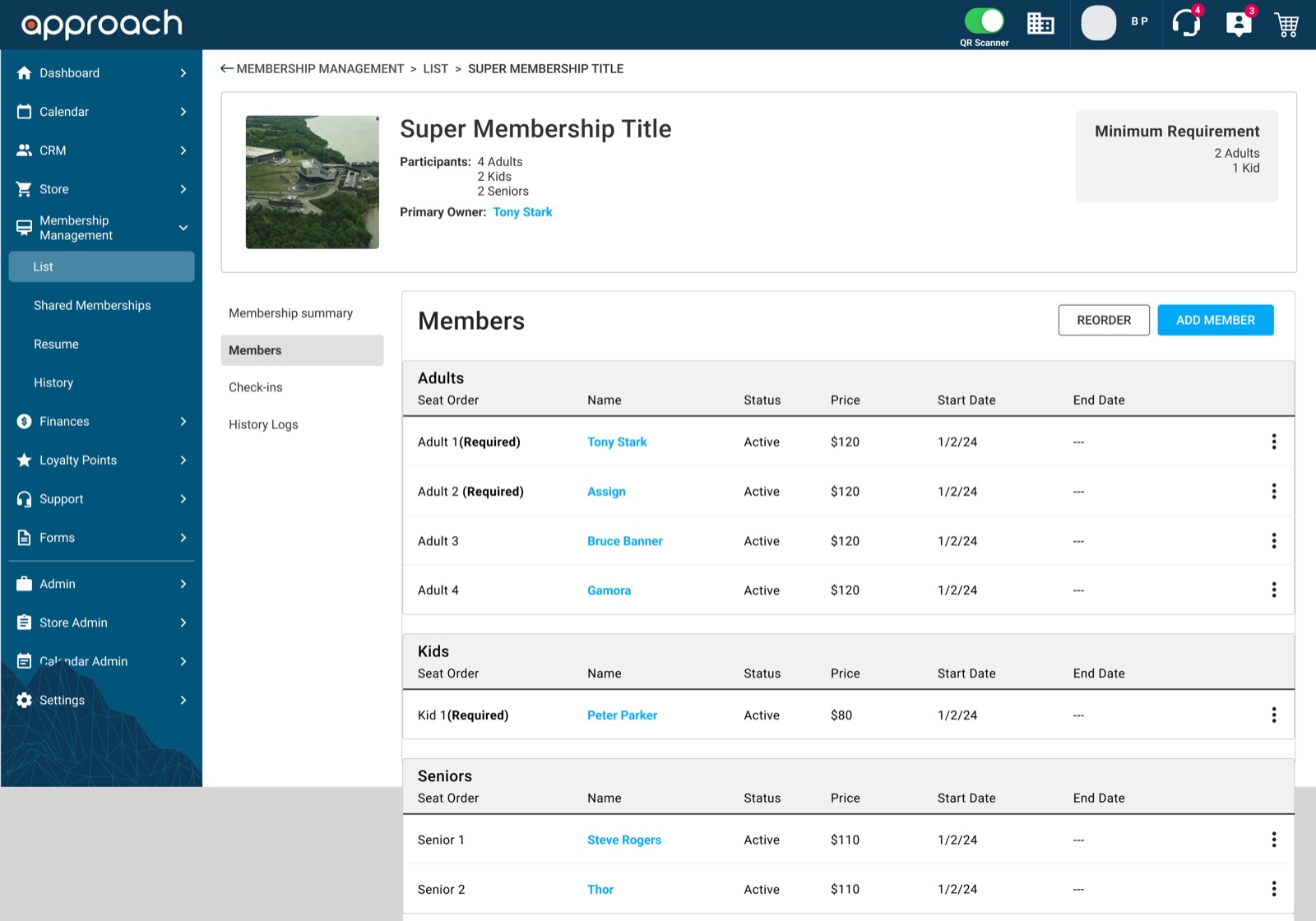
- Managing: the membership page shows a summary, members grouped by classification, check-ins and history. Staff can add, assign, reorder or cancel seats, or put the whole group on hold.
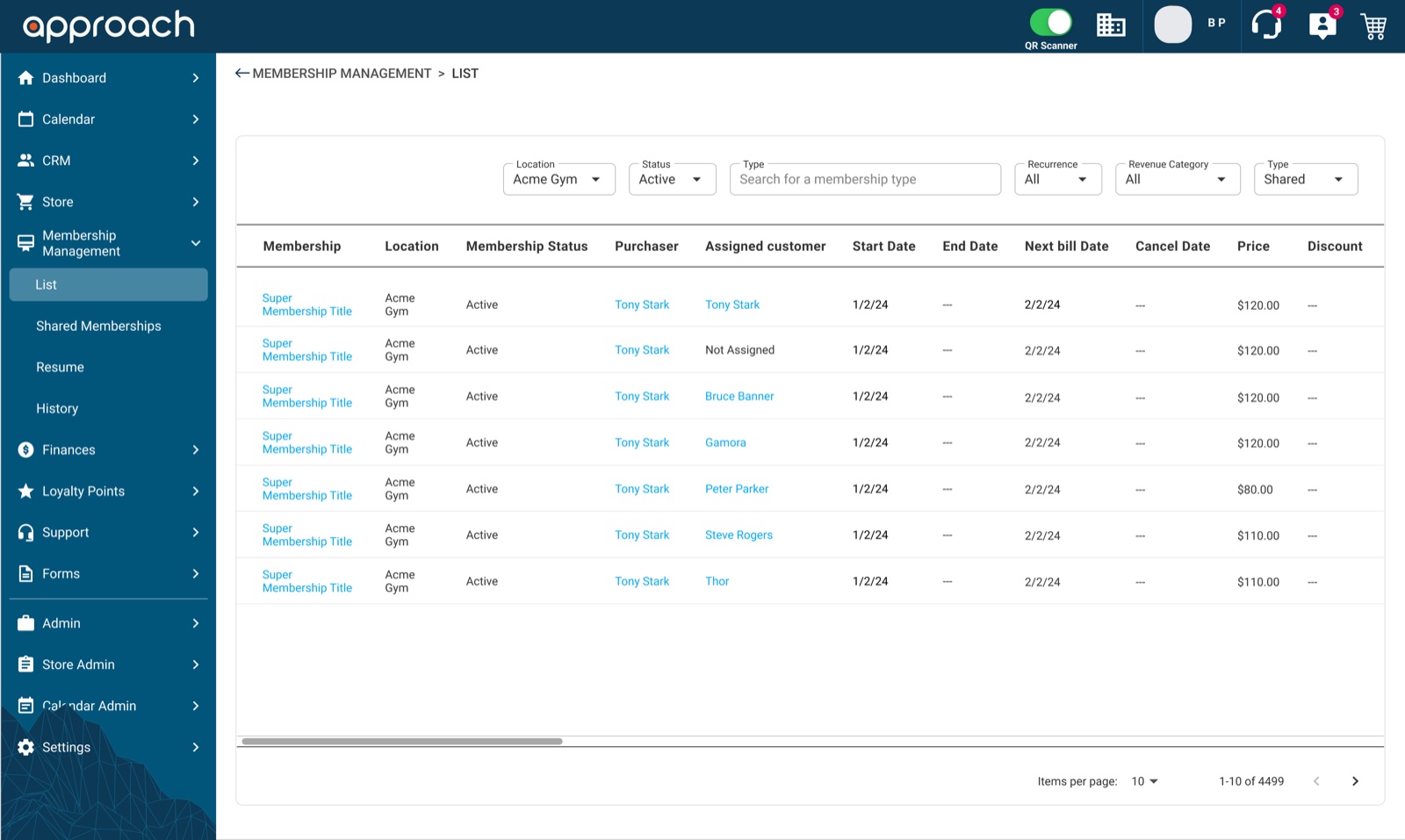
- Reporting: the membership list shows the purchaser and the assigned customer side by side, including seats that aren’t assigned yet.
Outcome
- Gyms can sell one plan to a whole family, with fair prices per person and clear rules for who can join.
- Every seat, and every agreement, points to one specific person, which removes the guesswork at check-in.
- The flows were approved in design reviews with client leadership and the engineering leads, and moved into development.