
Approach · Climbing gym software
Event Waitlists
Filling cancelled spots in classes and events automatically, without adding work for front desk staff.
Problem
When a full class had a cancellation, the spot often stayed empty. Staff had to fill it by hand, calling or emailing people from a list.
What I did
Designed the waitlist settings, the rules for promoting people from the queue, and how the portal and staff views reflect each state.
Result
Gyms can let the system promote the next eligible person automatically, with limits that protect customers from last-minute surprises.
Context
Approach is the platform climbing gyms use to run their business: memberships, passes, check-ins, classes and events. Popular events, like technique clinics or youth programs, fill up fast, and people cancel close to the start date.
Before this project, events had no real waitlist logic. Once an event was full, there was no structured way for customers to wait for a spot, and no way for the system to offer it to the next person.
The problem
- Empty spots after cancellations. A last-minute cancellation usually meant a lost booking, because nobody was told the spot was free.
- Manual work at the front desk. Staff tracked interested customers on their own and reached out one by one.
- No fair order. Without a queue, whoever happened to check the portal at the right time got the spot.
Gym operators asked for two things: automatic first-come, first-served promotion, and control over when that automation should stop.
Constraints
- Passes are consumed on booking. If a pass holder was promoted shortly before an event and didn’t see the notification, they lost a visit without attending.
- Entrance rules are set per event. Requirements apply to all memberships, all passes, or both, not to specific tiers.
- Existing system. New settings had to fit the current event editor, the portal’s booking buttons and the component library.
- Scope in small phases. Each part was planned and shipped in blocks of one to three weeks.
Key decisions
1. Three plain-language modes instead of separate technical switches
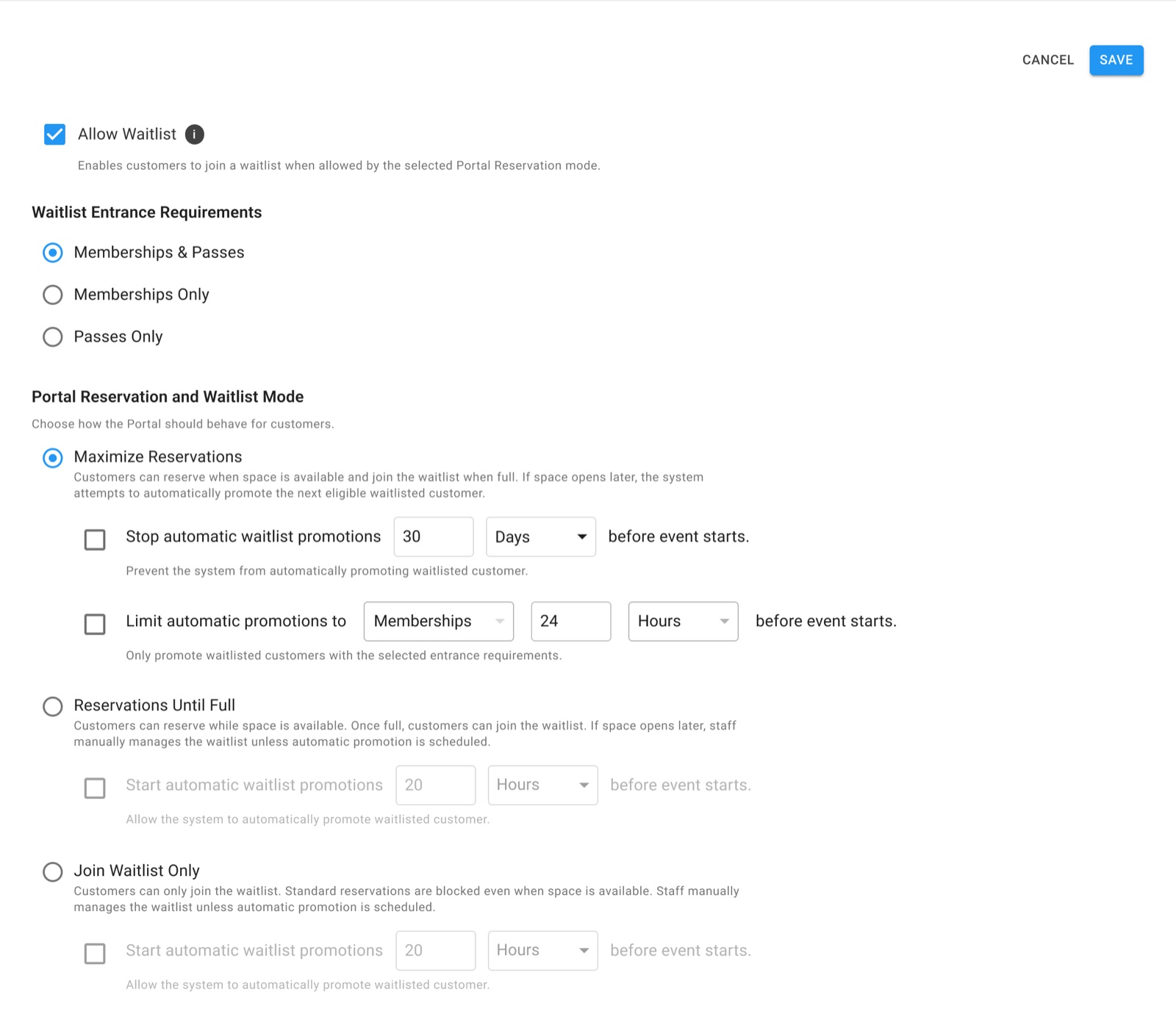
The behavior depends on several things at once: whether the event is open, whether it’s full, and whether automation is on. Instead of exposing each one as its own toggle, I grouped them into three modes that describe what customers will experience:
- Maximize Reservations: book while there’s space, join the waitlist when full, and promote automatically when a spot opens.
- Reservations Until Full: book while there’s space; after that, staff manage the waitlist unless automation is scheduled.
- Join Waitlist Only: customers can only join the waitlist, so staff decide who gets in.
Discarded Independent switches for status and automation. They were more flexible, but combinations were hard to predict, and it was easy to end up with an event nobody could book.
2. Time limits for automatic promotions
Operators were worried about pass holders being promoted too close to the event. I added two optional limits, both measured in minutes, hours or days before the event starts:
- Stop automatic promotions after a cutoff, so late openings are handled by staff.
- Limit promotions to members near the start time, so pass holders don’t lose a visit they can’t use.
Discarded Promoting automatically until the event starts. It fills more spots on paper, but it creates the exact complaint operators wanted to avoid.
3. A full event stays in waitlist mode
When a full event gets a cancellation, it doesn’t reopen for regular booking. The spot goes to the first eligible person in the queue, and only staff can switch the event back.
Discarded Reverting to open booking automatically. It would let someone skip people who had been waiting, and could overbook the event.
The solution
The same rules show up consistently across the product, so staff and customers always see the current state:
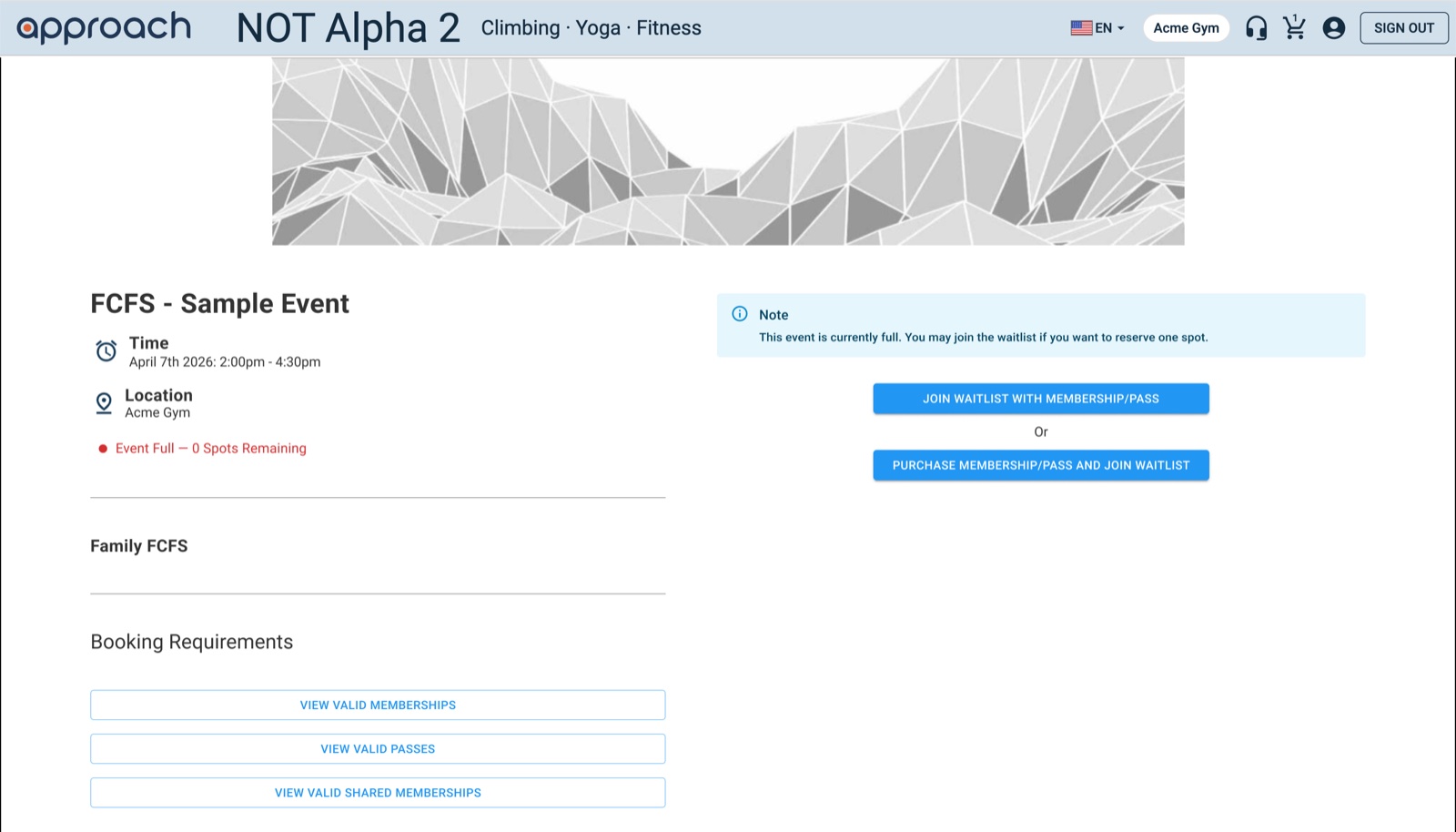
- Customer portal: a full event shows “Event Full” with zero spots remaining and offers to join the waitlist with an existing membership or pass, or to buy one and join.
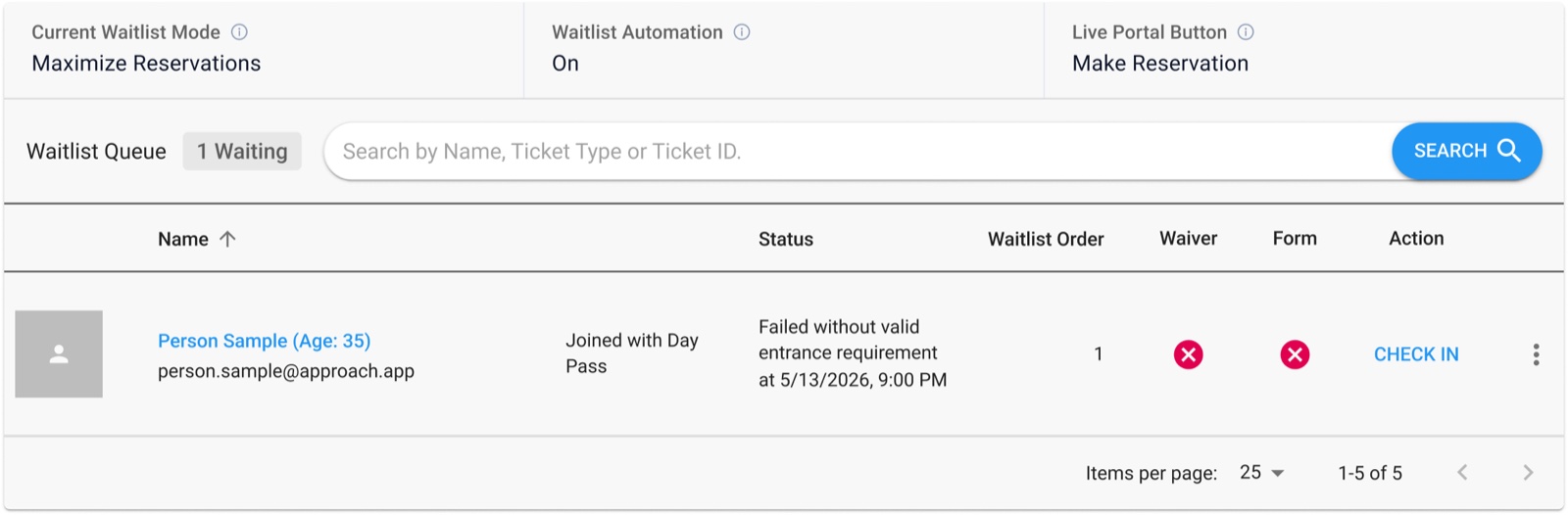
- Staff view: the waitlist panel shows the current mode, whether automation is on, and which button customers see right now, followed by the queue in order.
- Customer groups: staff can move members of a group to the waitlist in one action.
- Edge cases: only the first person who meets the entrance rules is promoted, and dependent settings stay hidden until the waitlist is enabled.
Outcome
- Cancelled spots can be filled automatically, in queue order, instead of through manual outreach.
- Operators decide how much to automate and when to stop, event by event.
- Pass holders are protected from being promoted when it’s too late to attend.